
How To Get Brighter Police Lights in GTA 5 and FiveM
Discover how to get brighter police lights in GTA 5 and FiveM for enhanced visuals and gameplay - applicable for FiveM, GTA 5, RageMP & altV.
Having brighter police lights in GTA 5 or FiveM can significantly enhance your gameplay, especially for emergency roleplay scenarios in FivePD. This guide will walk you through how to install Radiance V, a client-side modification, to make police lights and other emergency lights brighter and more visually appealing.
Table of Contents
- Step 1: Download Radiance V
- Step 2: Extract and Select Brightness Level
- Step 3: Locate Your FiveM Application Data Folder
- Step 4: Replace the Visual Settings File
- Step 5: Launch FiveM
- Step 6: Verify Installation
- Important Notes
Step 1: Download Radiance V
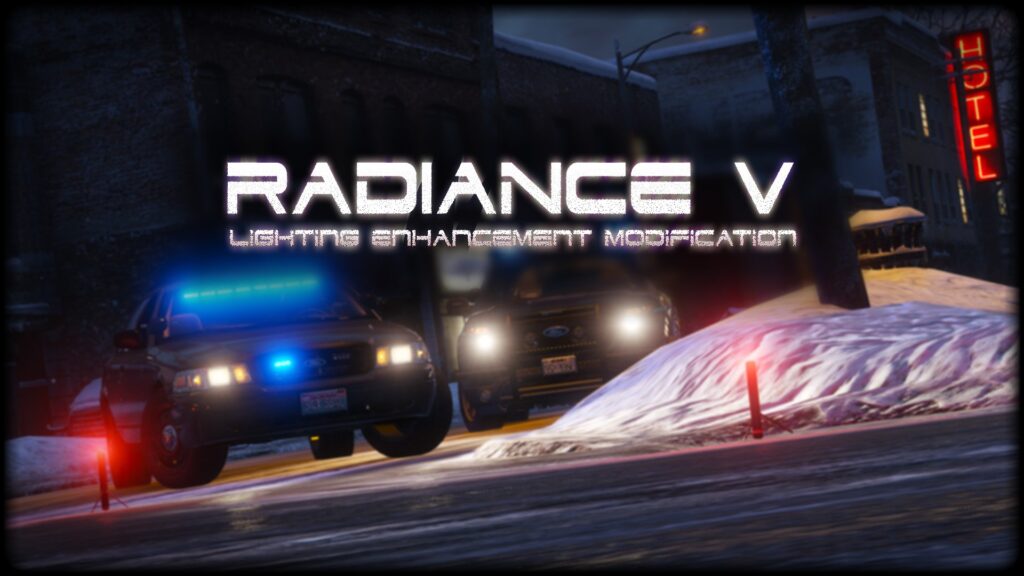
- Visit the Radiance V download page. Look for the download link and click on it.
- Download the latest version (e.g., Version 2.1).
- Once downloaded, the file will appear as a compressed folder. Use WinRAR or any other unpacking software to extract the folder.
- Ensure that your download is complete and error-free by checking the integrity of the file.
Step 2: Extract and Select Brightness Level
-
Open the extracted folder. Inside, you will find a directory named
visualsettings. -
Navigate to the
visualsettingsfolder to find two sub-options:- Bright: A moderate increase in brightness.
- Very Bright: A dramatic increase in brightness, but may appear too intense at night.
Recommendation: Select the
Brightoption for a balanced visual enhancement that works well in most scenarios without being overwhelming. -
Copy the
visualsettings.datfile from your chosen brightness folder. -
Keep a backup of the original
visualsettings.datfile in case you want to revert to the default settings.
Step 3: Locate Your FiveM Application Data Folder
- Right-click on your FiveM shortcut or locate the
FiveM.exefile. - Select Open File Location to access the FiveM installation directory.
- Open the
FiveM Application Datafolder. - Inside, navigate to the following path:
Citizen > Common > DataIf you cannot find this directory, double-check your FiveM installation or reinstall the application.
Step 4: Replace the Visual Settings File
- In the
Datafolder, you may already have avisualsettings.datfile if you’ve previously installed a visual mod. - Drag the new
visualsettings.datfile into this folder. - If prompted, select Replace the File to overwrite the existing one.
- Ensure that no other conflicting mods are present in the folder, as they might affect the functionality of Radiance V.
Step 5: Launch FiveM
- Close all windows and start FiveM.
- Join any server, including a localhost server, to test the changes. Note that this modification is client-side and will work on all servers without requiring server-side adjustments.
- Monitor the loading process to ensure no errors occur during startup. Restart FiveM if necessary.
Step 6: Verify Installation
- Spawn a police vehicle or any emergency vehicle.
- Turn on the emergency lights and observe the brightness.
- Adjust the time to night (if applicable) to better notice the enhancement.
- Test the lights in different weather conditions, such as rain or fog, to ensure consistent performance.
- If you’re using FivePD, ensure the lights work in sync with your roleplay setup.
+ Video Tutorial
Important Notes
- This modification is client-side only. For your friends to see the same brightness, they must also install Radiance V.
- Radiance V enhances all emergency lights, including police and fire vehicles, making them visible from greater distances.
- If you encounter issues, ensure you replaced the correct file and restarted FiveM properly.
- Compatibility: Radiance V works well with other visual mods like Reshade but may require adjustments for optimal results.
- Avoid using the “Very Bright” option if you play frequently at night to prevent excessive glare.
Additional Tutorials
If you’re interested in other enhancements for GTA 5 and FiveM, check out our other tutorials:
Stay tuned for more guides, and feel free to leave questions or feedback in the comments. Enjoy your brighter lights and improved gameplay!